Add flexible time for a staff
Introduction:
Amrita E-Track is an indigenous application designed to help the organization run a digital attendance system. This documentation provides procedural guidance for HR to add flexible time for teaching staff.
Getting Started:
To access Amrita Attendance Management System.
- Open an internet browser (Recommended to use Google Chrome)
- Type https://my.amrita.edu/ and click enter.
- Login with your amrita email id and password.
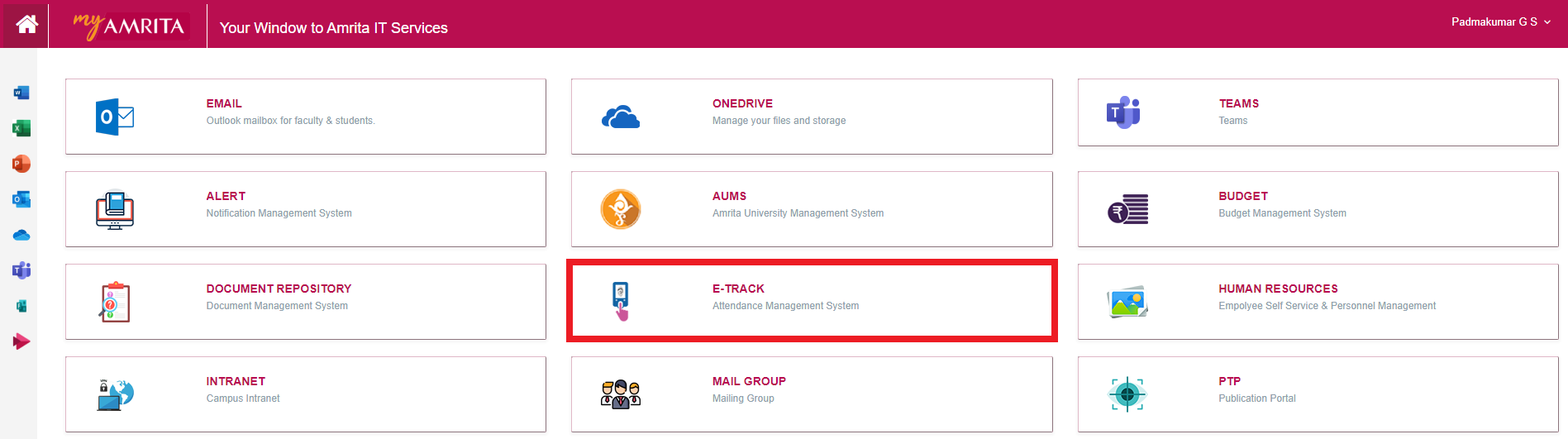
- Click AMRITA E-TRACK.
Adding Flexible timing for a staff
Flexible timing provides staff with flexibility in their work schedule while ensuring operational requirements are met. Staff are required to work 8 consecutive hours from their punch-in time, with flexibility in choosing their start time.
- Click on HR administration
- Click on Employee List
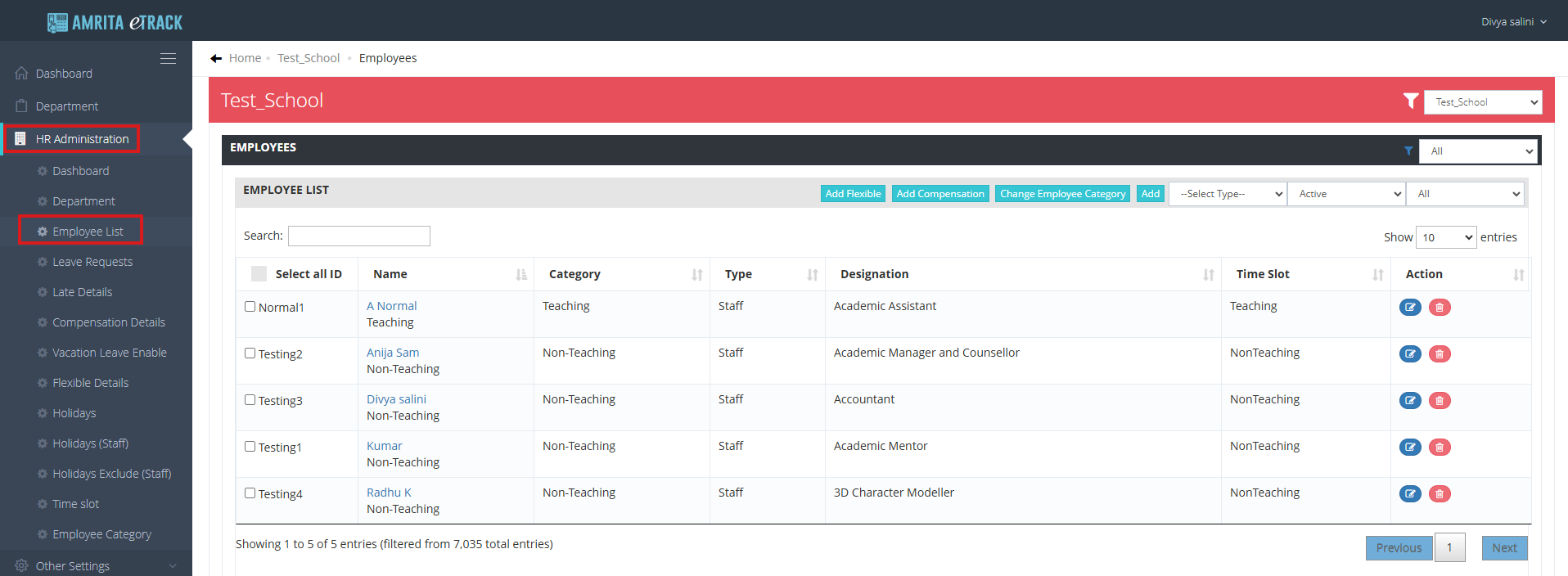
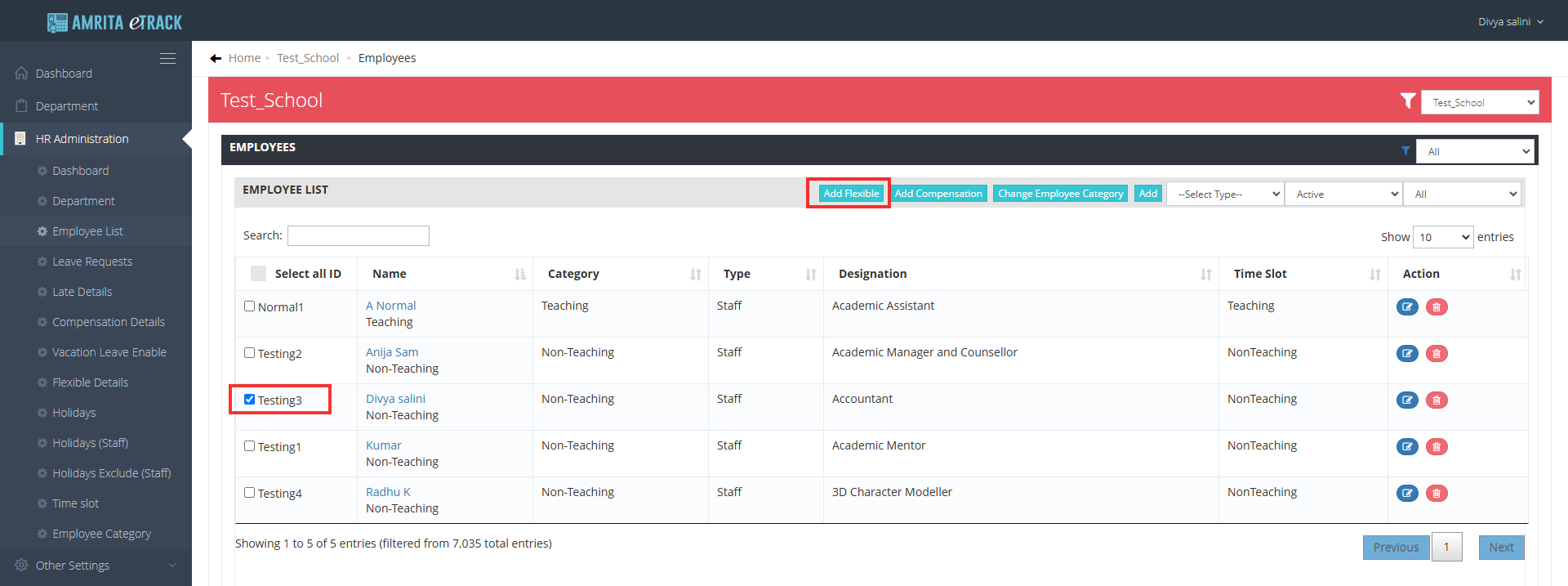
- Select the checkbox corresponding to the ID of the staff member you want to assign flexible timing to. Alternatively, check Select all ID to assign flexible timing to all the employees.
- Click on the Add Flexible button
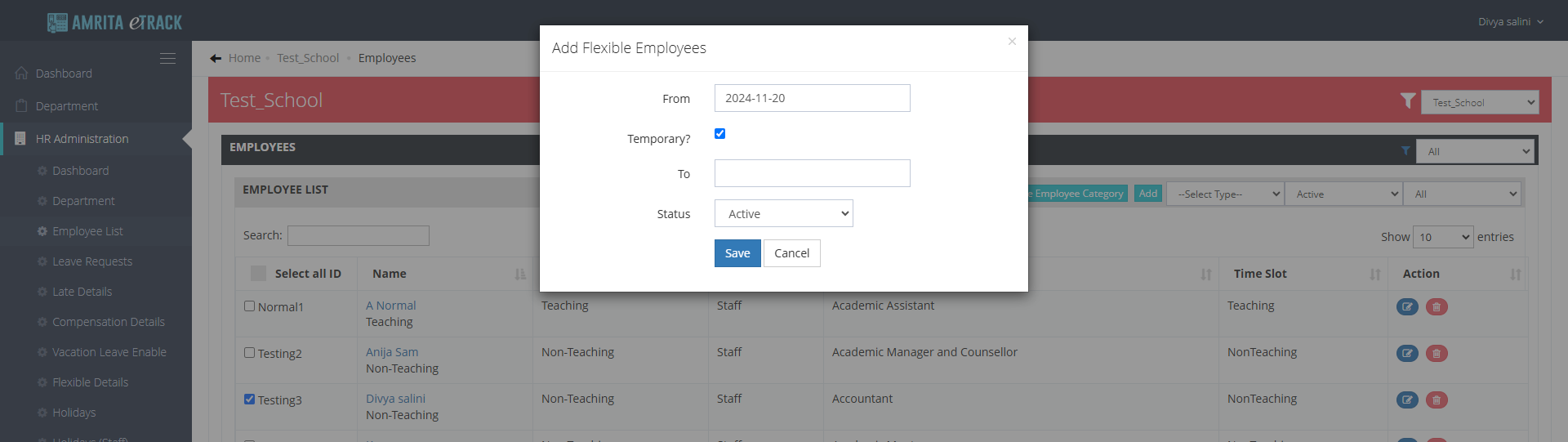
- Enter the From date - The day flexible timing starts.
- If flexible timing is temporary, Select the Temporary? check box
- Enter the To date - The day flexible timing ends. (To Date is required only when Temporary is selected)
- Select Status Status can be Active or Inactive
- Click on the Save button
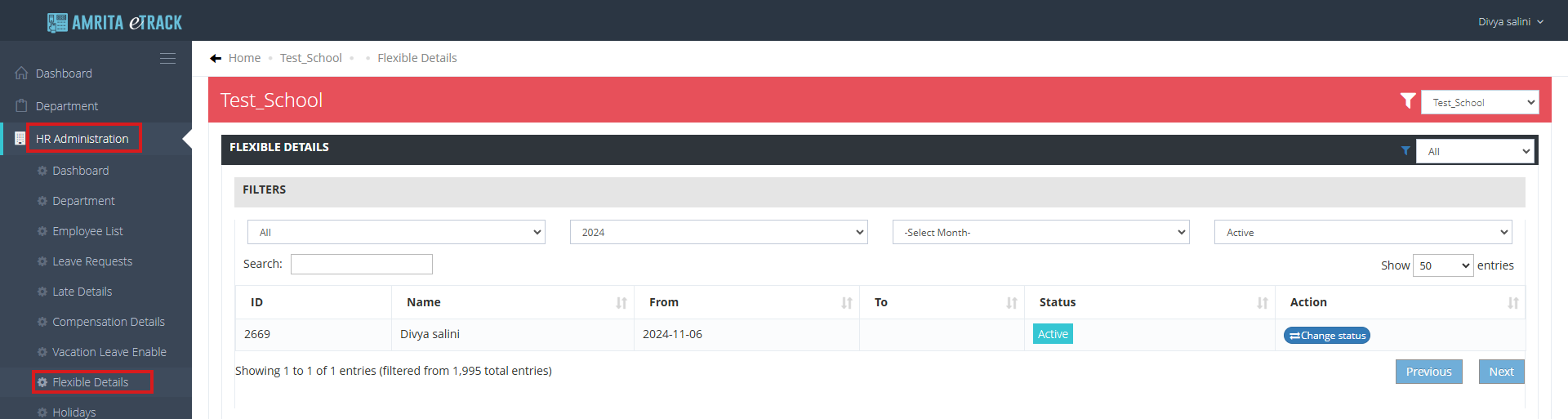
HR can view the flexible time details in Flexible Details
- Click on HR Administration.
- Click on Flexible Details.
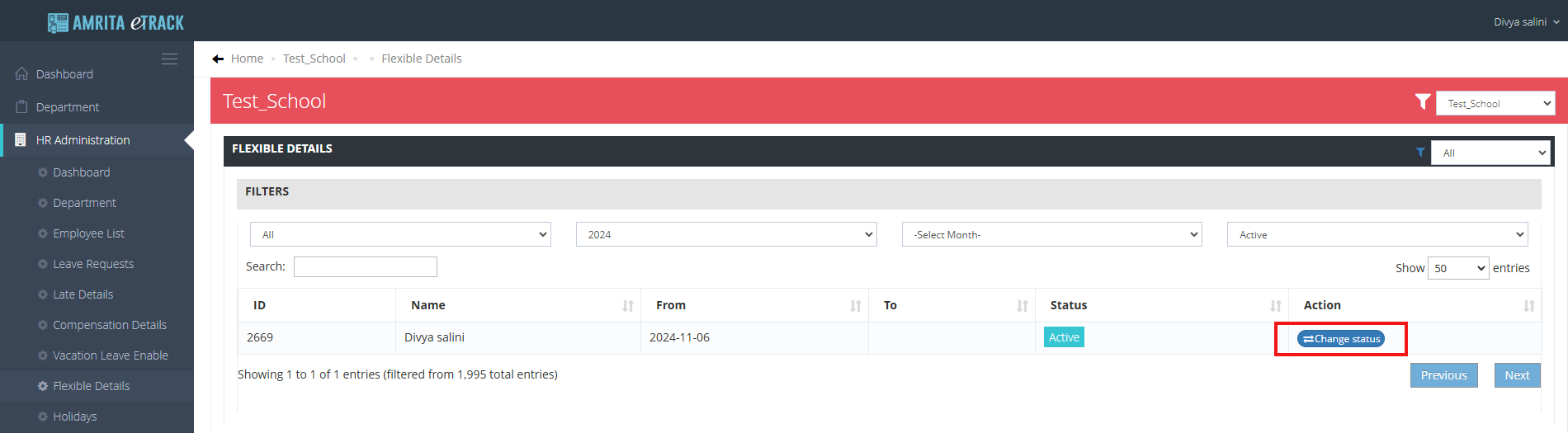
HR can change the status of flexible timing from active to Inactive by clicking the Change status button.
Currently there is no option for editing the flexible timing.